" transform="translate(5 2)" width="10px"/></svg>)

•
5 min read
AI Voice Tools for Documents (August 2026)

•
5 min read
AI Voice Tools for Documents (August 2026)
Your cursor blinks, waiting for another email, note, or document you don’t have time to type. AI voice tools change that by letting you speak at full conversational speed instead of crawling at keyboard pace. Because most people talk nearly four times faster than they type, turning ideas into text becomes minutes of speaking instead of hours of writing across a busy workday.
TLDR:
Voice dictation lets you write at 150 WPM vs typing at 40 WPM.
Context-aware tools like Willow read your work to spell technical terms and names correctly.
Free options (Apple, Google Docs, etc.) cover many everyday use cases, while paid tools may offer advantages for heavier or technical writing workflows.
A modern third-party voice engine delivers 3x higher accuracy than built-in dictation with approximately 200 millisecond latency.
Multi-language and accent-adaptive models help global teams speak smoothly without slowing down.
Why Voice Dictation Matters for Document Creation
Most professionals spend hours each day writing emails, documents, and messages. Yet typing remains the default input method, creating a productivity bottleneck.
The difference is clear: average typing speed is around 40 words per minute, while speaking reaches 150 words per minute. That's nearly 4x faster.
For someone writing 2,000 words daily, voice dictation saves roughly 35 minutes compared to typing. That adds up to over 140 hours per year.
The benefits go beyond speed. Speaking feels more natural than typing, and you keep your train of thought without the stop-start rhythm of keyboard input.
This matters for knowledge workers handling multiple writing tasks throughout the day: email responses, meeting notes, project documentation, and client communications that add up quickly.
Willow Voice
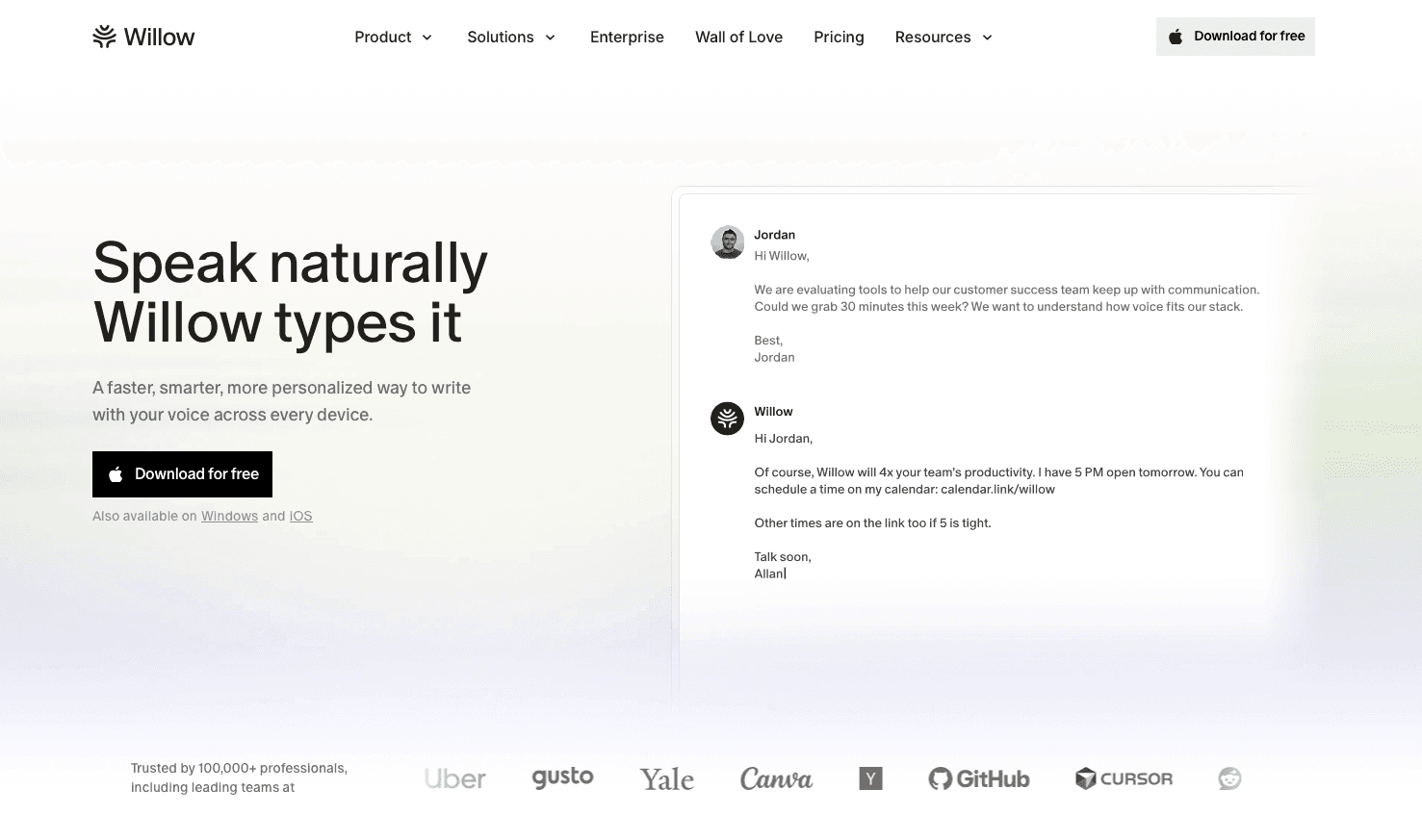
Willow is available as a native application on Mac and Windows, plus a custom voice keyboard for iOS that works in any app. Press the Function key (fn on Mac, Alt+Space on Windows) in any application and start talking. Your words appear wherever your cursor sits. The same dictation experience carries across Mac, Windows, and iOS, so mixed-device teams move between a laptop and phone without relearning shortcuts.
The app works in Gmail, Slack, Notion, Google Docs, ChatGPT, Cursor, iMessage, and any other text field on Mac, Windows, or iOS. No switching between applications or copy-pasting required.
Context-Aware Accuracy
Willow reads what you’re working on to handle technical terms, company names, and industry-specific phrases correctly. If you’re emailing Dr. Katz, the name gets spelled right. If you’re coding in Cursor, the technical vocabulary comes through accurately. In supported IDEs like Cursor and Windsurf, Willow also reads open files to learn class names, function names, and variable references, so code-specific terms transcribe accurately without manual dictionary entry.
The app delivers 3x higher accuracy than Apple’s built-in dictation while automatically removing filler words, and the tone adapts to context, from formal emails to casual messages. Willow’s Auto-Dictionary learns from corrections over time, remembering names, technical terms, company names, jargon, and contact emails so terms transcribe correctly after the first fix.
Willow Scribe: AI-Assisted Content Generation
Willow Scribe is a distinct mode from Dictation Mode, activated with Fn + Control on Mac and Alt+Shift+Space on Windows. Instead of transcribing word-for-word, it generates complete written content from voice prompts. You can draft full emails and messages, generate context-aware replies by reading email thread or Slack conversation history, and edit existing text via voice commands for rewriting, clarity improvements, or translation. Scribe is available on Mac and Windows.
Privacy and Offline Capabilities
Willow is SOC 2 (including SOC 2 Type II) and HIPAA compliant with zero data retention policies. For users requiring complete privacy or working without internet, Willow offers an optional Offline Mode that runs a local model on Mac and iOS, delivering quality that rivals competitors’ primary local tools while maintaining the option to use cloud models for maximum speed and accuracy.
For teams, this extends to shared infrastructure: team-shared dictionaries enforce consistent spelling of company terms, and shared team shortcuts let teams trigger common phrases without retyping. Admin controls make it straightforward to scale dictation from a single user to an entire org.
Dragon

Dragon runs on Windows and offers desktop speech recognition with custom voice commands for workflow automation. Nuance discontinued the Mac version in 2018, so it is Windows-only today. The software achieves high accuracy under optimal conditions but requires extensive initial training.
The software allows creation of custom vocabularies for industry terms and supports multiple microphone types within the same profile, making it suitable for specialized fields like legal or medical documentation where terminology accuracy matters. Dragon Medical One, built for clinical documentation, adds a $525 implementation fee on top of its roughly $99 per month subscription.
Accuracy and Training Requirements
Dragon learns from user corrections over time and adapts to individual speech patterns. The system requires clear enunciation and normal speaking pace for best results.
Accuracy depends heavily on microphone quality and consistent dictation habits. Users need to invest time upfront teaching Dragon their voice, then continue making corrections as the software adapts.
Google Docs Voice Typing
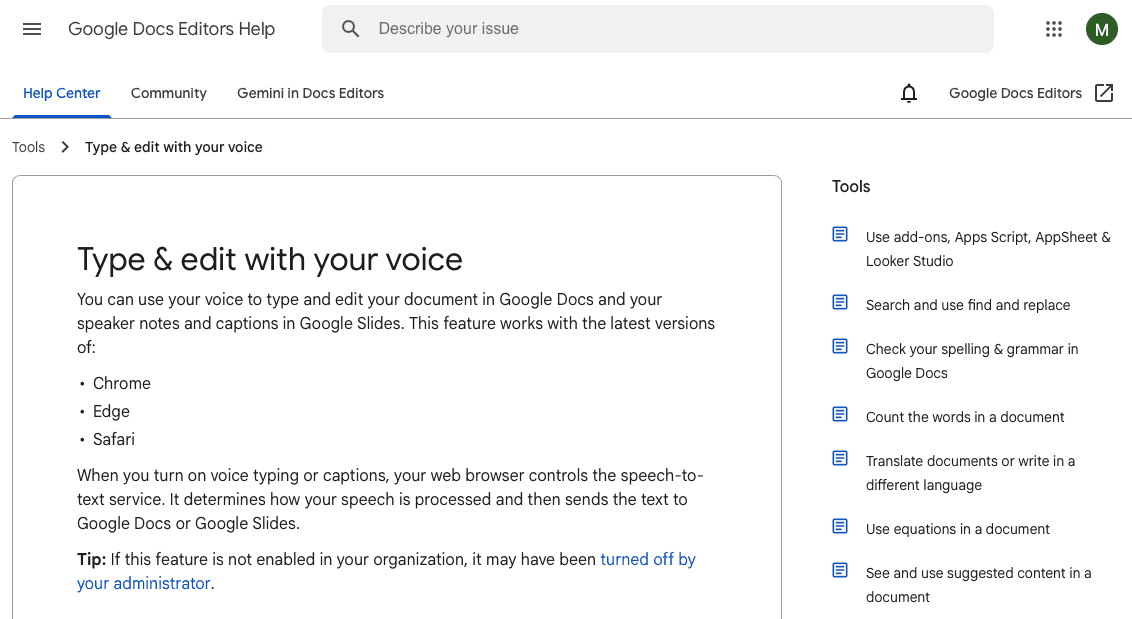
Google Docs Voice Typing is a free feature built into Chrome. Access it through Tools > Voice Typing or Ctrl+Shift+S (Cmd+Shift+S on Mac), then click the microphone icon to start transcription in your document.
The feature supports over 100 languages and requires an internet connection. It works exclusively within Google Docs (and Slides) in supported browsers, but not in Gmail or other Google apps.
Voice Commands and Limitations
Say "new paragraph," "bold," or "bullet point" to format while speaking. Voice commands only function when both your Google account and document language are set to English.
Uncertain words appear underlined in gray. Accuracy drops with background noise or inconsistent audio quality. The tool processes each dictation independently without reading surrounding context, so technical terms and proper nouns often require manual correction.
Microsoft Word Dictation
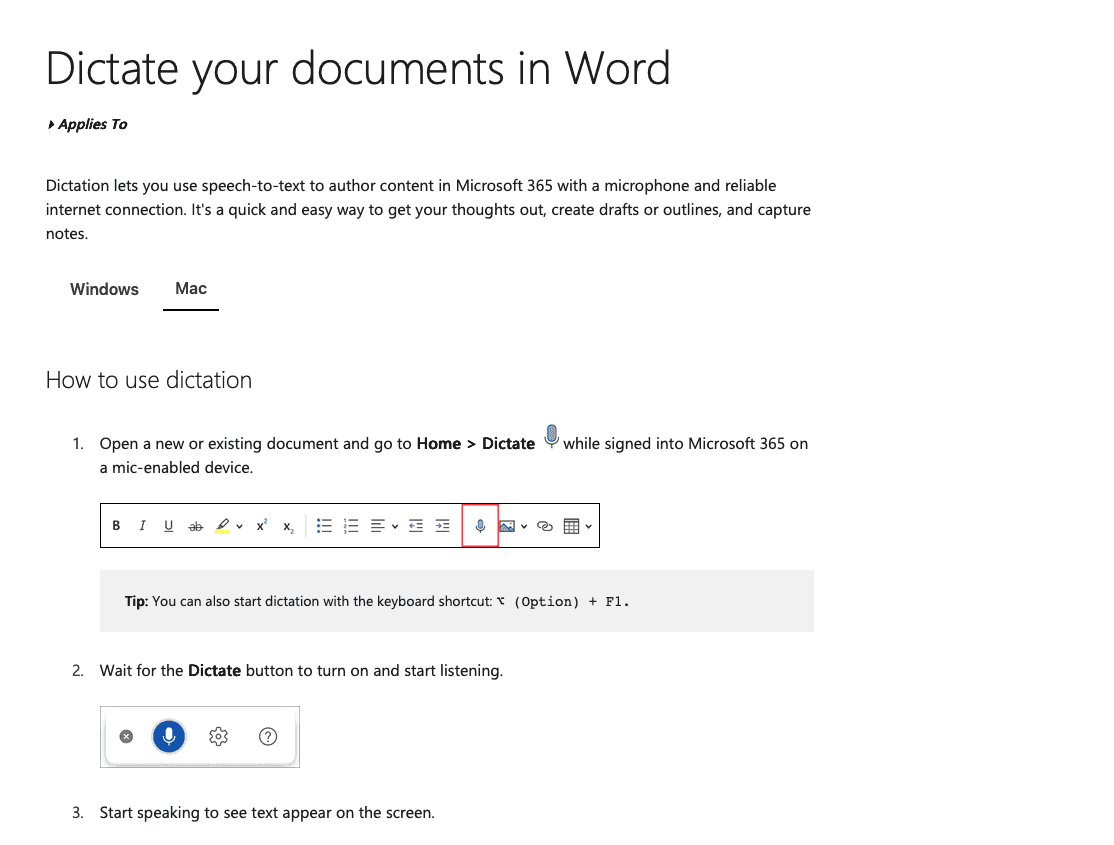
Microsoft Word Dictation comes included with Office 365 subscriptions at no extra cost. Access it through the dictation button on the Home ribbon in Word, PowerPoint, and Outlook across Windows, Mac, and mobile devices.
The feature activates with a click and transcribes speech directly into your document. It processes audio through Microsoft's cloud servers, requiring an active internet connection to function.
Subscription and Connection Requirements
Dictation requires an active Office 365 subscription. The feature won't work with standalone Office purchases or offline use since transcription happens on Microsoft's servers, not your device.
Accuracy varies with internet connection quality and speaking clarity. Background noise affects results, and context awareness remains limited compared to dedicated dictation apps.
Apple Built-In Dictation
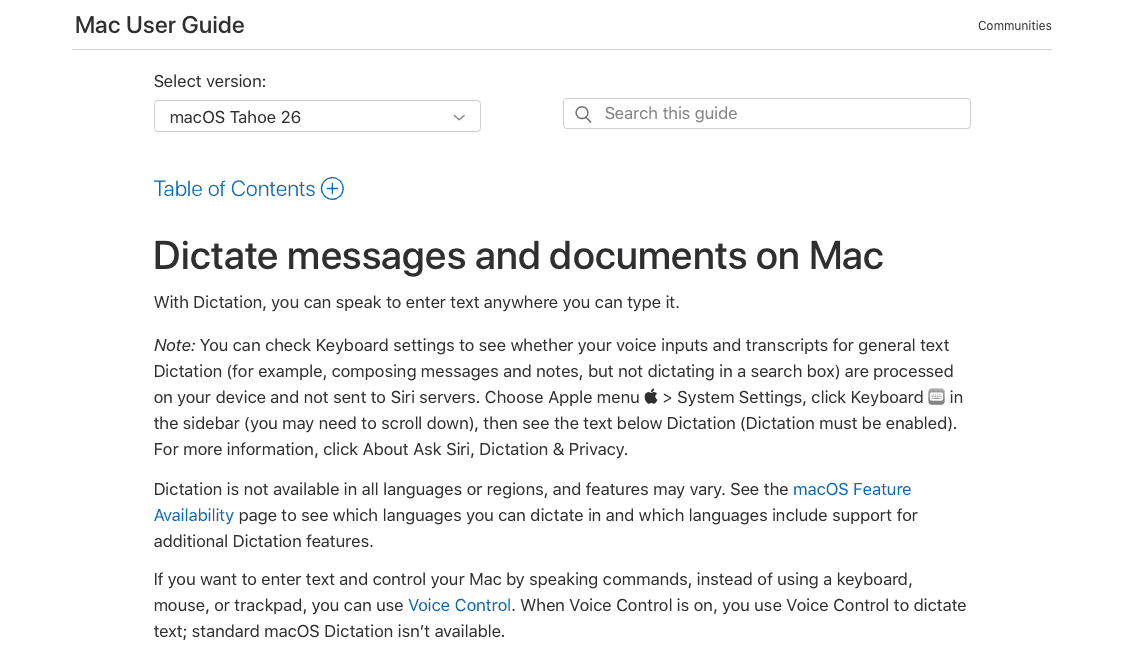
Apple devices include native dictation by pressing the function key twice on Mac or tapping the microphone icon on iPhone and iPad. The feature works system-wide across Messages, Mail, Notes, Safari, and any text field without additional software.
The built-in option requires no setup or subscription cost. Dictation activates instantly and converts speech to text using Apple's servers.
Basic Functionality and Accuracy Gaps
Apple’s dictation handles everyday vocabulary well, though it processes specialized terms differently from context-aware tools. Technical jargon, company names, and industry-specific phrases can appear misspelled or transcribed inconsistently.
The system treats each dictation session as standalone input without learning from surrounding text or previous corrections. This creates repetitive errors that require manual fixing in professional or technical writing contexts where precision matters.
Voice In Browser Extension
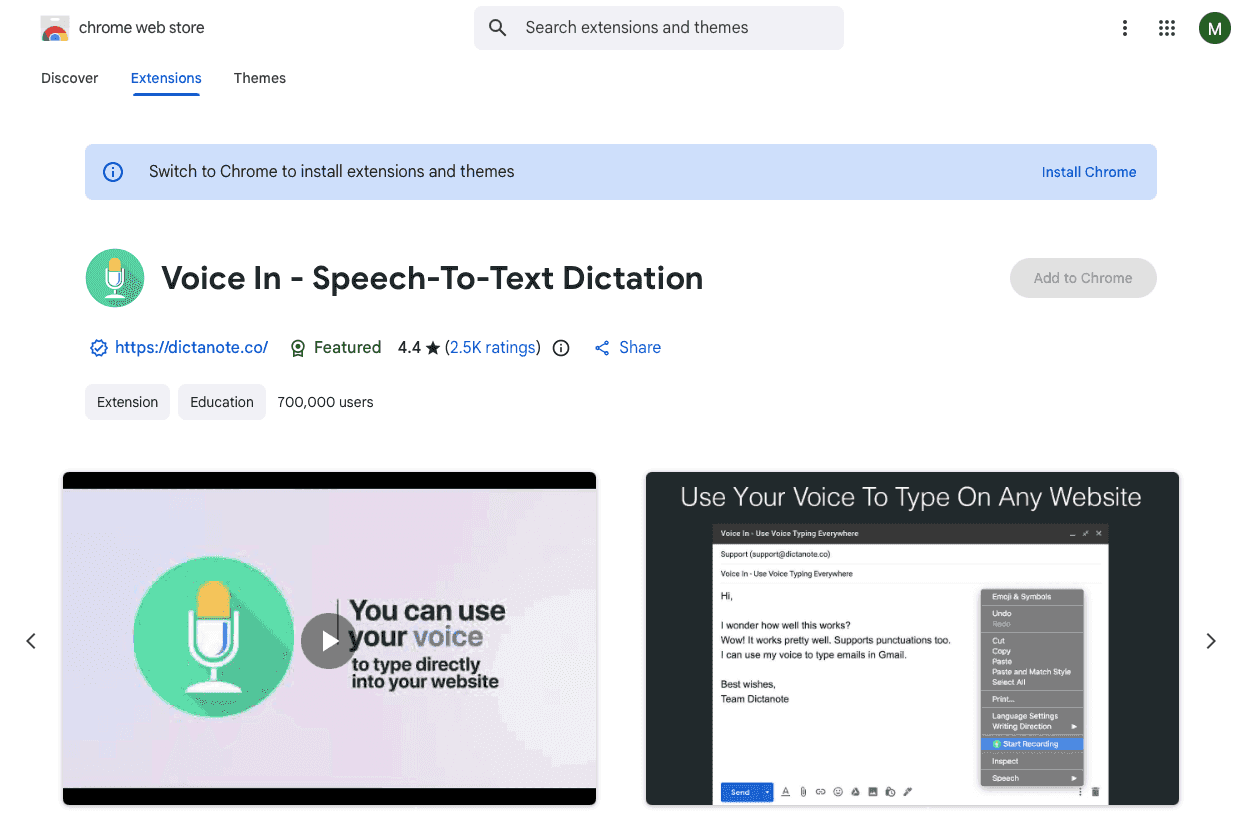
Voice In is a Chrome extension with over 600,000 users that adds dictation to web forms, email clients, and content management systems, supporting 100+ languages across thousands of websites.
You can create custom voice commands and shortcuts for repetitive web-based tasks like filling out forms, responding to emails, or updating content in browser-based tools.
The tradeoff: Voice In only functions within Chrome. It won't work in desktop apps like Slack, iMessage, or native email clients.
Key Features to Look for in AI Voice Tools
Accuracy and Context Awareness
Many basic voice tools hit 90% accuracy in quiet settings, which means fixing one error per ten words. Context-aware dictation goes further by reading your document to learn technical vocabulary, proper names, and industry-specific terms that generic speech recognition misses.
The best tools adjust tone based on where you're typing. An email to your CEO needs different phrasing than a Slack message to your team, and smart voice software recognizes these differences automatically.
Speed and Latency
Sub-200 millisecond latency lets you see words appear in real time, making it easier to catch and correct errors while speaking. Processing delays break concentration and eliminate the productivity benefits of voice dictation.
Fast transcription keeps your thoughts flowing without the stop-start rhythm that comes from waiting for text to appear.
Cross-Application Compatibility
System-wide dictation removes the need to switch tools. If your voice software only works in browsers or specific apps, you'll still type in email clients, messaging apps, or code editors.
Universal compatibility means one hotkey works everywhere you write, whether you're in Gmail, Notion, Slack, or iMessage.
Choosing the Right Voice Tool for Your Workflow
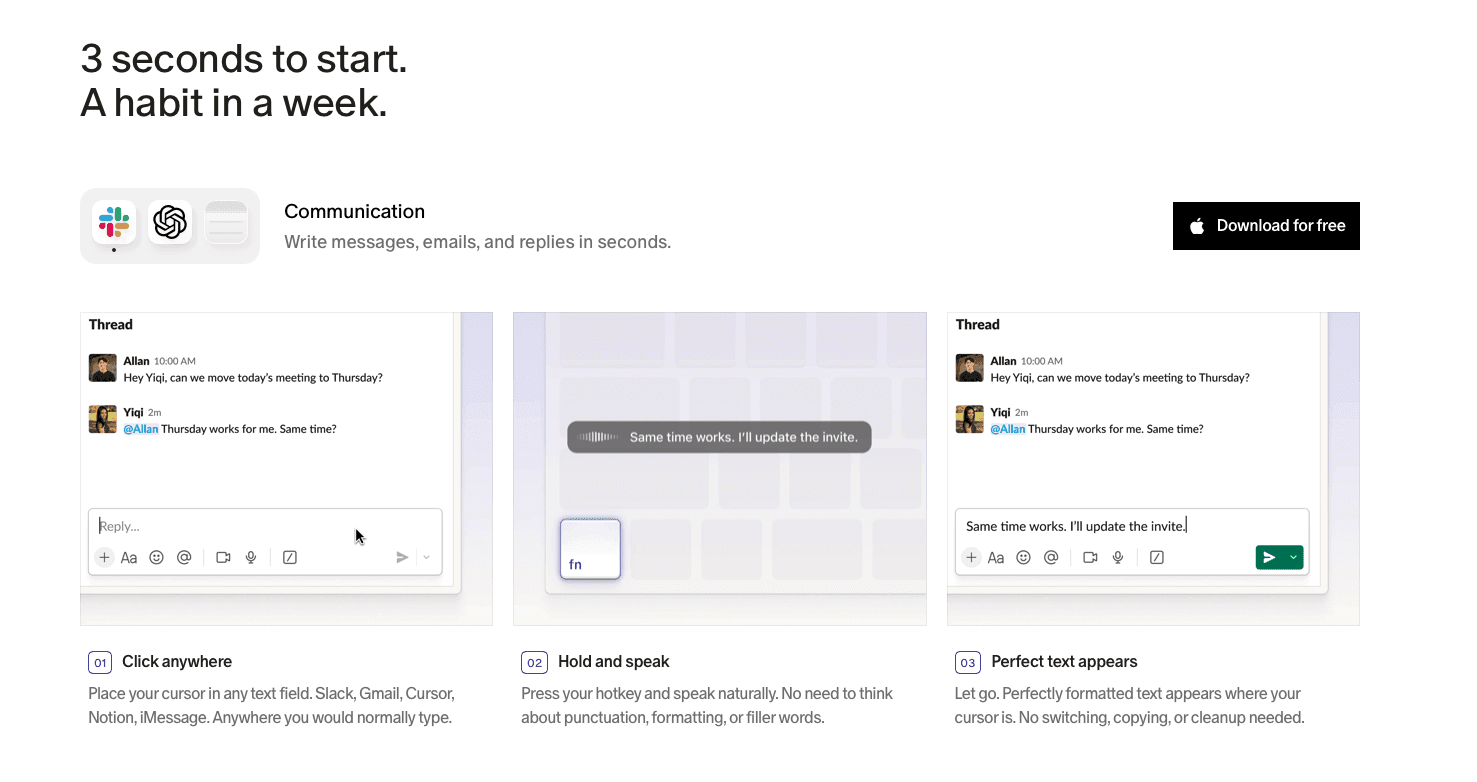
If you write across multiple apps each day, Willow offers the most reliable system-wide dictation experience on Mac, Windows, and iOS. It converts speech to text in approximately 200 milliseconds, adapts to technical language, and works in Gmail, Slack, ChatGPT, Cursor, Notion, iMessage, and every other text field without switching windows or relying on browser extensions, making it well-suited for frequent emails, meeting notes, and detailed work.
Built-in tools like Apple’s dictation or Google Docs Voice Typing work well for light, everyday usage, though specialized terms often need more correction. Dragon Professional supports advanced workflows on Windows but comes with higher setup time and cost.
Tool | Platforms | Cost | Best For |
|---|---|---|---|
Willow | Mac, Windows, iOS | Forever free plan; paid tiers available | Cross-app dictation with context-aware accuracy |
Dragon | Windows only | Dragon Medical One: approximately $99 per month plus a $525 setup fee | Specialized fields like legal or medical documentation |
Google Docs Voice Typing | Chrome browser (Docs, Slides) | Free | Light, everyday dictation inside Google Docs |
Microsoft Word Dictation | Windows, Mac, mobile (Office apps) | Included with Office 365 | Quick dictation in Word, PowerPoint, Outlook |
Apple Built-In Dictation | Mac, iPhone, iPad | Free | System-wide dictation for casual, everyday use |
Voice In Browser Extension | Chrome (web only) | Free | Dictation across web forms and browser-based tools |
FAQs
What's the main difference between free dictation tools and paid options?
Free tools like Apple’s built-in dictation or Google Docs Voice Typing handle basic vocabulary well but process technical terms and company names without reading surrounding context. Paid tools like Willow read what you’re working on to get specialized vocabulary right and adapt tone based on where you’re typing, delivering 3x higher accuracy.
Can I use voice dictation in any application on my computer?
It depends on the tool. System-wide options like Willow or Apple's built-in dictation work in Gmail, Slack, Notion, iMessage, and any text field. Browser-only tools like Voice In or Google Docs Voice Typing limit you to web apps and won't work in desktop applications.
When should I consider switching from free to paid voice dictation?
If you're drafting multiple emails daily, writing reports, or managing technical documentation where accuracy matters, paid tools are worth the cost. Free options work fine for occasional note-taking, but heavy writers benefit from context awareness and sub-200 millisecond latency when replacing hours of typing each week.
Final Thoughts on Voice Dictation for Daily Writing
Voice dictation pays off when it helps you write faster than you type without adding correction overhead. Built-in tools work fine for light use, but frequent errors slow you down when writing is a big part of your day. AI voice tools like Willow deliver faster, cleaner transcription across any app, making everyday writing feel closer to speaking naturally. Try a few options and pick the setup that lets you focus on your ideas instead of fixing your text.
Your cursor blinks, waiting for another email, note, or document you don’t have time to type. AI voice tools change that by letting you speak at full conversational speed instead of crawling at keyboard pace. Because most people talk nearly four times faster than they type, turning ideas into text becomes minutes of speaking instead of hours of writing across a busy workday.
TLDR:
Voice dictation lets you write at 150 WPM vs typing at 40 WPM.
Context-aware tools like Willow read your work to spell technical terms and names correctly.
Free options (Apple, Google Docs, etc.) cover many everyday use cases, while paid tools may offer advantages for heavier or technical writing workflows.
A modern third-party voice engine delivers 3x higher accuracy than built-in dictation with approximately 200 millisecond latency.
Multi-language and accent-adaptive models help global teams speak smoothly without slowing down.
Why Voice Dictation Matters for Document Creation
Most professionals spend hours each day writing emails, documents, and messages. Yet typing remains the default input method, creating a productivity bottleneck.
The difference is clear: average typing speed is around 40 words per minute, while speaking reaches 150 words per minute. That's nearly 4x faster.
For someone writing 2,000 words daily, voice dictation saves roughly 35 minutes compared to typing. That adds up to over 140 hours per year.
The benefits go beyond speed. Speaking feels more natural than typing, and you keep your train of thought without the stop-start rhythm of keyboard input.
This matters for knowledge workers handling multiple writing tasks throughout the day: email responses, meeting notes, project documentation, and client communications that add up quickly.
Willow Voice
Willow is available as a native application on Mac and Windows, plus a custom voice keyboard for iOS that works in any app. Press the Function key (fn on Mac, Alt+Space on Windows) in any application and start talking. Your words appear wherever your cursor sits. The same dictation experience carries across Mac, Windows, and iOS, so mixed-device teams move between a laptop and phone without relearning shortcuts.
The app works in Gmail, Slack, Notion, Google Docs, ChatGPT, Cursor, iMessage, and any other text field on Mac, Windows, or iOS. No switching between applications or copy-pasting required.
Context-Aware Accuracy
Willow reads what you’re working on to handle technical terms, company names, and industry-specific phrases correctly. If you’re emailing Dr. Katz, the name gets spelled right. If you’re coding in Cursor, the technical vocabulary comes through accurately. In supported IDEs like Cursor and Windsurf, Willow also reads open files to learn class names, function names, and variable references, so code-specific terms transcribe accurately without manual dictionary entry.
The app delivers 3x higher accuracy than Apple’s built-in dictation while automatically removing filler words, and the tone adapts to context, from formal emails to casual messages. Willow’s Auto-Dictionary learns from corrections over time, remembering names, technical terms, company names, jargon, and contact emails so terms transcribe correctly after the first fix.
Willow Scribe: AI-Assisted Content Generation
Willow Scribe is a distinct mode from Dictation Mode, activated with Fn + Control on Mac and Alt+Shift+Space on Windows. Instead of transcribing word-for-word, it generates complete written content from voice prompts. You can draft full emails and messages, generate context-aware replies by reading email thread or Slack conversation history, and edit existing text via voice commands for rewriting, clarity improvements, or translation. Scribe is available on Mac and Windows.
Privacy and Offline Capabilities
Willow is SOC 2 (including SOC 2 Type II) and HIPAA compliant with zero data retention policies. For users requiring complete privacy or working without internet, Willow offers an optional Offline Mode that runs a local model on Mac and iOS, delivering quality that rivals competitors’ primary local tools while maintaining the option to use cloud models for maximum speed and accuracy.
For teams, this extends to shared infrastructure: team-shared dictionaries enforce consistent spelling of company terms, and shared team shortcuts let teams trigger common phrases without retyping. Admin controls make it straightforward to scale dictation from a single user to an entire org.
Dragon
Dragon runs on Windows and offers desktop speech recognition with custom voice commands for workflow automation. Nuance discontinued the Mac version in 2018, so it is Windows-only today. The software achieves high accuracy under optimal conditions but requires extensive initial training.
The software allows creation of custom vocabularies for industry terms and supports multiple microphone types within the same profile, making it suitable for specialized fields like legal or medical documentation where terminology accuracy matters. Dragon Medical One, built for clinical documentation, adds a $525 implementation fee on top of its roughly $99 per month subscription.
Accuracy and Training Requirements
Dragon learns from user corrections over time and adapts to individual speech patterns. The system requires clear enunciation and normal speaking pace for best results.
Accuracy depends heavily on microphone quality and consistent dictation habits. Users need to invest time upfront teaching Dragon their voice, then continue making corrections as the software adapts.
Google Docs Voice Typing
Google Docs Voice Typing is a free feature built into Chrome. Access it through Tools > Voice Typing or Ctrl+Shift+S (Cmd+Shift+S on Mac), then click the microphone icon to start transcription in your document.
The feature supports over 100 languages and requires an internet connection. It works exclusively within Google Docs (and Slides) in supported browsers, but not in Gmail or other Google apps.
Voice Commands and Limitations
Say "new paragraph," "bold," or "bullet point" to format while speaking. Voice commands only function when both your Google account and document language are set to English.
Uncertain words appear underlined in gray. Accuracy drops with background noise or inconsistent audio quality. The tool processes each dictation independently without reading surrounding context, so technical terms and proper nouns often require manual correction.
Microsoft Word Dictation
Microsoft Word Dictation comes included with Office 365 subscriptions at no extra cost. Access it through the dictation button on the Home ribbon in Word, PowerPoint, and Outlook across Windows, Mac, and mobile devices.
The feature activates with a click and transcribes speech directly into your document. It processes audio through Microsoft's cloud servers, requiring an active internet connection to function.
Subscription and Connection Requirements
Dictation requires an active Office 365 subscription. The feature won't work with standalone Office purchases or offline use since transcription happens on Microsoft's servers, not your device.
Accuracy varies with internet connection quality and speaking clarity. Background noise affects results, and context awareness remains limited compared to dedicated dictation apps.
Apple Built-In Dictation
Apple devices include native dictation by pressing the function key twice on Mac or tapping the microphone icon on iPhone and iPad. The feature works system-wide across Messages, Mail, Notes, Safari, and any text field without additional software.
The built-in option requires no setup or subscription cost. Dictation activates instantly and converts speech to text using Apple's servers.
Basic Functionality and Accuracy Gaps
Apple’s dictation handles everyday vocabulary well, though it processes specialized terms differently from context-aware tools. Technical jargon, company names, and industry-specific phrases can appear misspelled or transcribed inconsistently.
The system treats each dictation session as standalone input without learning from surrounding text or previous corrections. This creates repetitive errors that require manual fixing in professional or technical writing contexts where precision matters.
Voice In Browser Extension
Voice In is a Chrome extension with over 600,000 users that adds dictation to web forms, email clients, and content management systems, supporting 100+ languages across thousands of websites.
You can create custom voice commands and shortcuts for repetitive web-based tasks like filling out forms, responding to emails, or updating content in browser-based tools.
The tradeoff: Voice In only functions within Chrome. It won't work in desktop apps like Slack, iMessage, or native email clients.
Key Features to Look for in AI Voice Tools
Accuracy and Context Awareness
Many basic voice tools hit 90% accuracy in quiet settings, which means fixing one error per ten words. Context-aware dictation goes further by reading your document to learn technical vocabulary, proper names, and industry-specific terms that generic speech recognition misses.
The best tools adjust tone based on where you're typing. An email to your CEO needs different phrasing than a Slack message to your team, and smart voice software recognizes these differences automatically.
Speed and Latency
Sub-200 millisecond latency lets you see words appear in real time, making it easier to catch and correct errors while speaking. Processing delays break concentration and eliminate the productivity benefits of voice dictation.
Fast transcription keeps your thoughts flowing without the stop-start rhythm that comes from waiting for text to appear.
Cross-Application Compatibility
System-wide dictation removes the need to switch tools. If your voice software only works in browsers or specific apps, you'll still type in email clients, messaging apps, or code editors.
Universal compatibility means one hotkey works everywhere you write, whether you're in Gmail, Notion, Slack, or iMessage.
Choosing the Right Voice Tool for Your Workflow
If you write across multiple apps each day, Willow offers the most reliable system-wide dictation experience on Mac, Windows, and iOS. It converts speech to text in approximately 200 milliseconds, adapts to technical language, and works in Gmail, Slack, ChatGPT, Cursor, Notion, iMessage, and every other text field without switching windows or relying on browser extensions, making it well-suited for frequent emails, meeting notes, and detailed work.
Built-in tools like Apple’s dictation or Google Docs Voice Typing work well for light, everyday usage, though specialized terms often need more correction. Dragon Professional supports advanced workflows on Windows but comes with higher setup time and cost.
Tool | Platforms | Cost | Best For |
|---|---|---|---|
Willow | Mac, Windows, iOS | Forever free plan; paid tiers available | Cross-app dictation with context-aware accuracy |
Dragon | Windows only | Dragon Medical One: approximately $99 per month plus a $525 setup fee | Specialized fields like legal or medical documentation |
Google Docs Voice Typing | Chrome browser (Docs, Slides) | Free | Light, everyday dictation inside Google Docs |
Microsoft Word Dictation | Windows, Mac, mobile (Office apps) | Included with Office 365 | Quick dictation in Word, PowerPoint, Outlook |
Apple Built-In Dictation | Mac, iPhone, iPad | Free | System-wide dictation for casual, everyday use |
Voice In Browser Extension | Chrome (web only) | Free | Dictation across web forms and browser-based tools |
FAQs
What's the main difference between free dictation tools and paid options?
Free tools like Apple’s built-in dictation or Google Docs Voice Typing handle basic vocabulary well but process technical terms and company names without reading surrounding context. Paid tools like Willow read what you’re working on to get specialized vocabulary right and adapt tone based on where you’re typing, delivering 3x higher accuracy.
Can I use voice dictation in any application on my computer?
It depends on the tool. System-wide options like Willow or Apple's built-in dictation work in Gmail, Slack, Notion, iMessage, and any text field. Browser-only tools like Voice In or Google Docs Voice Typing limit you to web apps and won't work in desktop applications.
When should I consider switching from free to paid voice dictation?
If you're drafting multiple emails daily, writing reports, or managing technical documentation where accuracy matters, paid tools are worth the cost. Free options work fine for occasional note-taking, but heavy writers benefit from context awareness and sub-200 millisecond latency when replacing hours of typing each week.
Final Thoughts on Voice Dictation for Daily Writing
Voice dictation pays off when it helps you write faster than you type without adding correction overhead. Built-in tools work fine for light use, but frequent errors slow you down when writing is a big part of your day. AI voice tools like Willow deliver faster, cleaner transcription across any app, making everyday writing feel closer to speaking naturally. Try a few options and pick the setup that lets you focus on your ideas instead of fixing your text.

Try Willow for free
Instant, accurate voice dictation. No card required.
Try Willow for free
Instant, accurate voice dictation. No card required.
Other stories you’ll love
Other stories you’ll love


Your keyboard is optional now
" transform="translate(5 5)" width="9.791000051498413px"/></svg>)

The voice-first interface for modern work.
© Willow Care, Inc. 2026. All rights reserved
Your keyboard is optional now
The voice-first interface for modern work.
© Willow Care, Inc. 2026. All rights reserved
Your keyboard is optional now
The voice-first interface for modern work.
© Willow Care, Inc. 2026. All rights reserved