" transform="translate(5 2)" width="10px"/></svg>)

•
5 min read
Best Voice Dictation Software for Professionals June 2026

•
5 min read
Best Voice Dictation Software for Professionals June 2026
Small business owners lose hours every week to typing: client follow-ups, meeting notes, Slack threads, CRM updates. Your Mac or Windows computer already includes a built-in option, but it caps out at 60 seconds and has limited support for technical terms, proper nouns, and anything beyond a short note. AI-powered voice dictation software goes further, understanding context, removing filler words, and working across every app you already use. Voice input runs at around 150 words per minute compared to 40 words per minute for typing, a difference that adds up to real time saved across a full workday. We tested seven tools to find out which ones actually deliver.
TLDR:
Voice dictation software converts speech to text across Mac and Windows apps, replacing typing with speaking
Context-aware AI removes filler words and formats text automatically based on where you're typing
Most tools either lack universal app support or require complex setup and training
Voice typing can increase writing speed up to 4x compared to manual typing
Built-in Mac dictation is convenient but limited to short sessions and basic commands
What Is Voice Dictation Software for your Computer?
Voice dictation software for Mac and Windows converts spoken words into written text using AI-powered speech recognition tech. Instead of typing, you talk, and the software transcribes what you say in real time.
These tools work across the apps you already use. Whether you're writing an email in Gmail, messaging in Slack, drafting a document in Google Docs, or prompting ChatGPT, voice dictation replaces manual typing with your voice. You press a hotkey, speak naturally, and your words appear on screen.
The best dictation software goes beyond basic transcription. It understands context, removes filler words, and formats your writing automatically so it sounds polished and professional. The speech recognition market is expected to reach $14 billion by 2029, fueled by professionals who know that voice input can boost productivity by up to 30%.
How Small Businesses Use Voice Dictation Software
Voice dictation changes how small business teams get through their daily workload. Instead of stopping to type after every meeting or call, team members speak their thoughts and move on. Here's how small businesses put it to work.
Client emails and follow-ups. Writing personalized responses takes time. With voice dictation, founders and account managers can reply to a client thread in under a minute by speaking naturally. Tone-matching AI formats the output as a polished email without extra editing.
Slack and team messaging. Short messages pile up fast. Voice dictation lets team members reply to multiple threads in quick succession, cutting the back-and-forth that slows down a workday.
Documentation and meeting notes. After a sales call or internal review, speaking a quick summary into a doc beats waiting until you get back to a keyboard. Notes end up complete instead of scattered.
CRM and project updates. Keeping records current is tedious to type but easy to speak. Sales reps and ops teams can log updates into any CRM or project tool right after a client conversation.
AI prompting and content creation. Small business owners who rely on tools like ChatGPT work faster when they can describe what they need by voice instead of typing detailed prompts. Speaking at 150 words per minute versus typing at 40 words per minute adds up quickly over a full workday. For a closer look at how that works, see our post on voice prompting with ChatGPT.
Reducing physical strain. Typing for hours puts repeated stress on wrists, fingers, and shoulders. Switching to voice for emails, messages, and documents cuts keyboard time by a considerable amount, a practical option for anyone managing early-stage repetitive strain or simply looking to protect long-term health.
How We Ranked Voice Dictation Software for Mac and Windows
We tested each voice dictation tool across four key areas: accuracy, speed, compatibility, and ease of use.
Accuracy matters most when you're transcribing technical terms, proper nouns, or industry jargon. We measured how well each tool handled context-aware transcription and whether it required manual corrections after speaking.
Our testing involved reading four standardized passages totaling 600 words each: a general business email, a technical software document with code terms, a medical case summary, and a conversational Slack-style message. We recorded accuracy rates by counting uncorrected word errors, measured processing latency using a stopwatch from the end of speech to text appearing on screen, and tested each tool across 12 apps, including Gmail, Slack, Notion, ChatGPT, Google Docs, and native Mac and Windows text editors. We spent at least 3 hours per tool across multiple sessions. Latency ranged from around 200 milliseconds for the fastest tools to over 1.5 seconds for the slowest, and accuracy scores ranged from roughly 85% to 98%+, depending on the tool and passage type.
Speed includes both processing latency and how quickly you can start speaking. The best dictation software processes speech in under a second, so you're not waiting around for your words to appear.
Universal compatibility means the software works everywhere you type. We focused on tools that function across email clients, messaging apps, browsers, document editors, and AI prompting interfaces without switching between different input methods.
Finally, we assessed setup complexity and learning curves. The best solutions work immediately without training sessions, custom configurations, or complicated workflows that slow you down.
The table below gives a quick side-by-side look at all seven tools before you read the full reviews. Use it to match each option to your workflow at a glance.
Tool | Price | OS Support | Offline Mode | Accuracy | Setup Time | Best For |
|---|---|---|---|---|---|---|
Willow | Free / $12/mo | Mac, Windows, iOS | Yes (optional) | 98%+ | Under 1 min | Universal, any app |
Dragon | $300+/yr | Windows only | No | 95%+ | Hours required | Windows-only enterprises |
Apple Built-in | Free (built-in) | Mac, iOS | Yes | ~85% | Instant | Occasional, simple notes |
Google Docs Voice | Free | Chrome browser only | No | ~90% | Instant | Google Workspace users |
Voice In | Free / Paid tiers | Chrome browser only | No | ~90% | Minutes | Web-based workflows |
Superwhisper | Paid | Mac, Windows, iOS | Yes (local) | ~88% | 30+ minutes | Privacy-focused users |
WisprFlow | Paid | Mac, Windows, iOS | No | ~92% | Minutes | Regular dictation users |
Best Overall Voice Dictation Software for Mac and Windows: Willow Voice
Willow Voice works natively on Mac, Windows, and iOS. Press the Function (fn) key and speak in any application, including Gmail, Slack, Notion, ChatGPT, Cursor, and Google Docs. On iOS, a custom voice keyboard lets you toggle between voice input and typed text without reverting to Apple's default keyboard. Custom vocabulary, settings, and style preferences sync across all three platforms, so you stay consistent whether you're at a desktop or on your phone.

Key Features
Context-aware AI that understands what you're working on, so technical terms, proper nouns, and industry jargon appear correctly without manual corrections
Automatic formatting with paragraphs, bullet points, and tone-matching based on where you're typing (emails sound professional, messages sound casual)
Automatic removal of filler words like "um" and "uh"
Support for 100+ languages
No voice data or transcription storage
Setup takes seconds with no training required
Optional Offline Mode for fully private, local dictation without an internet connection
Willow Assistant for text editing commands like 'reply to this email' or 'rewrite this text' with tone adjustments
Built for teams: shared custom dictionaries and shortcuts keep terminology consistent across every team member, with SOC 2 Type II and HIPAA compliance, zero data retention, and admin controls for org-wide deployment
Pros
98%+ accuracy with technical terms, proper nouns, and industry jargon, roughly 3x more accurate than built-in dictation tools
Around 200ms latency, compared to 700ms or more for most alternatives; text appears nearly instantly after you finish speaking
Works in any Mac or Windows app with one hotkey; no per-tool setup required
100+ languages with dialect parity (UK and US English, and more)
No voice data or transcriptions stored; SOC 2 Type II and HIPAA compliant
Setup takes under a minute with no training required
Cons
Free plan limited to 2,000 words per week
Cloud mode requires an internet connection (optional offline mode is available)
Mobile support is iOS only; no Android app
Pricing
Free: 2,000 words per week, forever. No credit card required. Works across all apps on Mac and Windows with full accuracy and hotkey access.
Individual ($12/month, billed annually): Unlimited words, custom vocabulary, all AI formatting features, Offline Mode, and iOS keyboard access. Monthly billing is available at a higher rate.
Team ($10/user/month): Everything in Individual, plus shared custom dictionaries, shared shortcuts, team leaderboards, and admin controls for org-wide deployment across Mac and Windows. Setup takes under a minute per machine with no IT configuration.
Enterprise (custom pricing): Dedicated onboarding, custom deployment, SOC 2 Type II and HIPAA compliance, signed Business Associate Agreements for healthcare organizations, and pricing structured for org-wide rollout. Used by teams at companies including Uber and Gusto.
Dragon
Dragon offers Windows-based speech recognition that Mac users can access through virtualization software like Parallels Desktop or VMware Fusion. After Nuance discontinued its native Mac version in 2018, the only remaining option for Mac users is Dragon Medical One, which runs through web browsers.
What They Offer
Industry-specific vocabularies covering legal, medical, and business terminology
Custom voice commands that control text editing and application functions
Integration with Windows applications when using virtualization software
Pros
Deep industry-specific vocabulary for legal, medical, and business terminology
Custom voice commands for Windows application control
Long track record in enterprise speech recognition
Cons
Native Mac support ended in 2018; Mac users must run Windows virtualization software
Requires hours of voice training before achieving reliable accuracy
High cost at $300+ per year
No offline mode
Bottom Line
The virtualization requirement adds meaningful friction to native Mac workflows. If you're moving away from Dragon, see our guide to Dragon dictation alternatives for Mac and PC.
Apple Built-in Dictation
Apple's native dictation feature comes pre-installed on macOS and integrates with the system's accessibility framework. Press the Function (fn) key twice to activate Siri-powered transcription across any text field.
What It Offers
Free with macOS installation, requiring no additional downloads
Enhanced Dictation mode for offline functionality
Basic voice commands for punctuation and formatting
Integration with Voice Control for system navigation
Pros
Free and pre-installed on all macOS devices
Works offline with Enhanced Dictation mode
Instant setup with no downloads or configuration
Cons
Cannot learn custom vocabulary or remember corrections
Struggles with technical terms, foreign names, and work jargon
No filler word removal or automatic text formatting
Limited to basic punctuation commands
Bottom Line
Lower accuracy and limited customization options make it less suited for professional workflows where precision matters.
Windows Voice Typing (Built-in)
Windows 11 includes a free built-in voice typing feature that works in any text field across the operating system. Press Win + H to open the voice typing toolbar, then click the microphone to start speaking. A separate Voice Access mode adds hands-free PC control, letting you move through apps, open menus, and interact with the desktop entirely by voice.
What It Offers
Free with Windows 11 and no additional downloads required
Works across any Windows text field, including email clients, browsers, and desktop apps
Auto-punctuation adds commas and periods based on your speech patterns
Voice Access mode for hands-free navigation of the Windows interface
Pros
Free and pre-installed on Windows 11 devices
Works across all Windows apps without extra software
Instant setup with no configuration needed
Cons
No filler word removal or context-aware formatting
Cannot learn custom vocabulary, industry terms, or proper nouns
Accuracy drops with technical jargon or non-standard names
No offline support for voice typing
Bottom Line
Windows Voice Typing is a capable free option for occasional use, but like Apple's built-in tool, it lacks the context awareness and accuracy needed for professional workflows where precision matters. For a full breakdown, see our guide to Windows dictation software.
Google Docs Voice Typing
Google's browser-based voice typing works within Google Workspace applications through Chrome or Safari browsers. Access it through Tools > Voice typing in Google Docs, then click the microphone icon to start speaking.
What They Offer
Multi-language support for voice input across Google applications
Voice commands for basic editing and formatting like "period," "comma," and "new paragraph"
Cloud synchronization with Google Workspace accounts for automatic saving
No software installation required for browser-based access
Pros
Free with any Google account
No software installation needed
Multi-language support across Google applications
Auto-saves to Google Workspace automatically
Cons
Works only in Chrome; no support for other browsers or native apps
Limited to Google Docs, Slides, and Drawings; Gmail and other apps are excluded
No offline support
No filler word removal or context-aware formatting
Bottom Line
Works well for Google Workspace users who stay in Chrome, but is limited to a single browser and a handful of Google apps. There is no support for Gmail, native desktop apps, or other browsers.
Voice In Browser Extension
Voice In is a Chrome extension that adds speech-to-text to web apps and forms. The extension reports 99%+ accuracy in over 50 languages and ranks as the most widely used speech-to-text extension on the Chrome Web Store.
Key Features
Browser-based dictation for Gmail, social media, and other websites
Support for 50+ languages with automatic punctuation
Custom voice commands for text editing
Free tier available with premium subscription options
Pros
Free tier available for everyday browser-based use
Works across most Chrome-based web apps and forms
50+ languages with automatic punctuation
Simple one-click activation; no complex setup
Cons
Chrome browser only
No support for native Mac or Windows desktop apps: Messages, Mail, or desktop versions of Slack and Notion
No context awareness or filler word removal
Limited formatting controls compared to desktop alternatives
Verdict
Works well for web-based tasks but leaves gaps in full-system productivity.
Superwhisper
Superwhisper processes speech entirely on your Mac without sending audio to external servers.
What They Offer
On-device processing keeps your audio files local with no internet dependency
Customizable workflows let you adjust transcription settings for different use cases
Multi-language support works offline once language models are downloaded
User training options help the software learn your voice patterns over time
Pros
Fully on-device processing; no audio sent to external servers
Works offline once language models are downloaded
Strong privacy controls for sensitive or confidential content
Cons
Setup and configuration take 30+ minutes before the tool works reliably
Local models produce lower accuracy than cloud-based alternatives
Slower processing speed compared to cloud tools
Bottom Line
Strong privacy protections, but expect a steep learning curve during initial setup. See how it compares in our Willow vs Superwhisper comparison.
WisprFlow
WisprFlow offers AI-powered dictation that works across nearly any text field on Mac.
What They Offer
Real-time filler word removal and grammar refinement as you speak
Multi-language support with automatic language switching between supported languages
Productivity tracking that monitors word count and speaking speed
macOS-native design activated through keyboard shortcuts
Pros
Works across most Mac text input fields
Real-time filler word removal and grammar refinement as you speak
Multi-language support with automatic language switching
Built-in productivity tracking for word count and speaking speed
Cons
Requires a manual keyboard shortcut to start and stop each session
Electron-based design is resource-intensive and can slow down your computer
Some users have raised questions about audio data handling practices and the transparency of third-party data sharing policies
Bottom Line
Works well for regular dictation users who don't mind manual activation between sessions.
5 Tips for Getting Better Results from Voice Dictation Software
Even the best voice dictation tool produces better results when you know how to use it. These five habits will help you get accurate, well-formatted output from the start.
Speak at a steady, natural pace. Rushing causes more errors than speaking too slowly. AI models handle natural speech well, but choppy input loses context between words. Aim for the same pace you would use in a phone call.
Say punctuation only when the tool requires it. Context-aware AI tools add commas, periods, and paragraph breaks automatically based on your intonation. Built-in tools often require you to say "comma" or "new paragraph" out loud. Know which type you're using before you start.
Add your vocabulary early. If your tool supports custom dictionaries, add names, product terms, or technical phrases before your first session. Five minutes of setup prevents recurring corrections on words you use every day.
Use a consistent hotkey to start and stop. Voice input works best when you get into a rhythm. Set a dedicated shortcut and stick to it so stopping and starting does not interrupt your thinking.
Review and correct in batches. Finish the full thought before fixing a word. This keeps your speaking pace consistent and produces better output overall.
Voice Dictation Software for Teams and Enterprise
When voice dictation moves from one person to a full team, the requirements change. Individual tools built around a single user's preferences rarely hold up when you need consistent vocabulary, shared shortcuts, and compliance controls across dozens of employees.
Willow Voice is built for both. On the individual side, it learns your corrections and builds a personal dictionary over time. For teams, that same functionality extends org-wide: shared custom dictionaries let every team member use consistent terminology, shared shortcuts trigger common phrases without retyping, and admin controls let IT manage deployment across Mac and Windows machines from one place.
Compliance is often the deciding factor for compliance-sensitive industries. Willow Voice is SOC 2 Type II and HIPAA certified, with zero data retention and signed Business Associate Agreements (BAAs) available for healthcare organizations. Teams at companies like Uber and Gusto use it at scale. The Enterprise plan includes custom deployment, dedicated onboarding, and pricing structured for org-wide rollout.
For businesses moving beyond individual use, the Team plan runs $10 per user per month. Setup takes under a minute per machine with no IT configuration required, and settings sync across devices so employees can continue using voice input on iOS without starting over.
Why Willow Is the Best Voice Dictation Software for Mac and Windows
Computer users face a choice between Apple's built-in dictation, which caps at 60 seconds and lacks custom vocabulary or context awareness, and third-party options that either lock you into specific apps or require Windows emulation. Microsoft Word's built-in dictation feature is another commonly recommended option, but it only works within Word and won't carry over to Gmail, Slack, or any other app you rely on throughout the day.
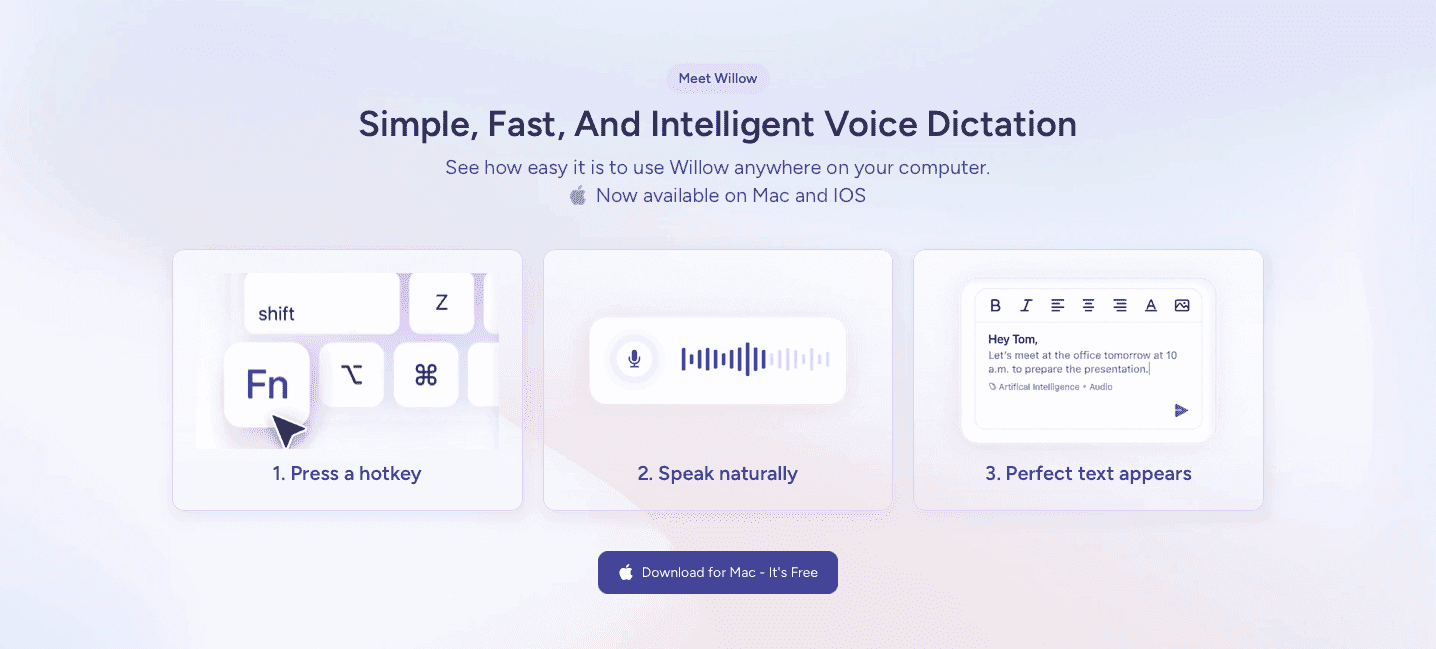
Willow solves this by working anywhere you type on macOS and Windows. Press the Function key in any application and start speaking. The AI learns your vocabulary over time, so the more you use it, the more accurate it becomes for you by removing filler words automatically and adjusting tone based on context. No browser windows required. No training sessions. No virtualization software. Willow delivers less than 200 milliseconds of latency, and gets faster to use the longer it knows how you write.
FAQs
How much faster is voice dictation compared to typing on a computer?
Voice dictation lets you speak at 150 words per minute compared to typing at 40 words per minute, making it roughly 4x faster for writing emails, documents, and messages.
What's the main difference between Apple's built-in dictation and AI-powered alternatives?
Apple's built-in dictation lacks context awareness and can't learn custom vocabulary, while AI-powered tools understand technical terms, adapt to your writing style, and automatically format your text based on where you're typing.
Can voice dictation software work in apps like Slack, Gmail, and ChatGPT?
The best voice dictation tools work universally across all Mac and Windows applications through hotkey activation, while browser-based options like Google Docs Voice Typing and Voice In only function within specific web apps or browsers.
How do I get voice dictation to recognize industry jargon and company names correctly?
Look for dictation software with custom dictionaries and context-aware AI that learns your vocabulary over time, allowing you to add company names, technical terms, and team-specific phrases that will always be spelled correctly.
When should I consider switching from free dictation tools to paid software?
If you're spending a considerable amount of time correcting transcription errors, manually formatting text, or finding that built-in dictation doesn't work across all your apps, paid software with higher accuracy and universal compatibility will save you time every day.
What microphone setup gives the best dictation accuracy?
The right microphone makes a noticeable difference in transcription accuracy, even when using the best AI-powered software. Built-in laptop microphones pick up background noise and keyboard sounds, which can lower accuracy by 10 to 15%. Here's what works best:
USB headset with a close-talk microphone. Keeping the mic 1 to 2 inches from your mouth blocks ambient noise and produces clean, consistent audio. Options like the Jabra Evolve or Logitech H390 work well for most office and home setups.
Wireless earbuds with built-in mics. AirPods Pro and similar earbuds offer solid accuracy for casual dictation and let you move around freely without dropping quality.
Desktop USB condenser microphone. A dedicated mic like the Blue Yeti or Rode NT-USB captures a wider voice range at a fixed distance, ideal for longer writing sessions at a desk.
Quiet environment first. No microphone outperforms a noisy room. Reducing background noise (fans, music, open office chatter) does more for accuracy than upgrading hardware alone.
For most professionals, a quality USB headset or recent wireless earbuds, paired with a tool like Willow, will achieve 98%+ accuracy without any extra configuration.
Final thoughts on computer voice typing options
If you type more than a few hundred words a day across email, Slack, docs, or AI tools, the fastest next step is trying voice input on a real task: an actual client email or a meeting summary. Download Willow Voice, press the Function key in whatever app you're already in, and speak one message. Most people find the switch clicks within the first session. Download Willow Voice free and start with 2,000 words at no cost.
Small business owners lose hours every week to typing: client follow-ups, meeting notes, Slack threads, CRM updates. Your Mac or Windows computer already includes a built-in option, but it caps out at 60 seconds and has limited support for technical terms, proper nouns, and anything beyond a short note. AI-powered voice dictation software goes further, understanding context, removing filler words, and working across every app you already use. Voice input runs at around 150 words per minute compared to 40 words per minute for typing, a difference that adds up to real time saved across a full workday. We tested seven tools to find out which ones actually deliver.
TLDR:
Voice dictation software converts speech to text across Mac and Windows apps, replacing typing with speaking
Context-aware AI removes filler words and formats text automatically based on where you're typing
Most tools either lack universal app support or require complex setup and training
Voice typing can increase writing speed up to 4x compared to manual typing
Built-in Mac dictation is convenient but limited to short sessions and basic commands
What Is Voice Dictation Software for your Computer?
Voice dictation software for Mac and Windows converts spoken words into written text using AI-powered speech recognition tech. Instead of typing, you talk, and the software transcribes what you say in real time.
These tools work across the apps you already use. Whether you're writing an email in Gmail, messaging in Slack, drafting a document in Google Docs, or prompting ChatGPT, voice dictation replaces manual typing with your voice. You press a hotkey, speak naturally, and your words appear on screen.
The best dictation software goes beyond basic transcription. It understands context, removes filler words, and formats your writing automatically so it sounds polished and professional. The speech recognition market is expected to reach $14 billion by 2029, fueled by professionals who know that voice input can boost productivity by up to 30%.
How Small Businesses Use Voice Dictation Software
Voice dictation changes how small business teams get through their daily workload. Instead of stopping to type after every meeting or call, team members speak their thoughts and move on. Here's how small businesses put it to work.
Client emails and follow-ups. Writing personalized responses takes time. With voice dictation, founders and account managers can reply to a client thread in under a minute by speaking naturally. Tone-matching AI formats the output as a polished email without extra editing.
Slack and team messaging. Short messages pile up fast. Voice dictation lets team members reply to multiple threads in quick succession, cutting the back-and-forth that slows down a workday.
Documentation and meeting notes. After a sales call or internal review, speaking a quick summary into a doc beats waiting until you get back to a keyboard. Notes end up complete instead of scattered.
CRM and project updates. Keeping records current is tedious to type but easy to speak. Sales reps and ops teams can log updates into any CRM or project tool right after a client conversation.
AI prompting and content creation. Small business owners who rely on tools like ChatGPT work faster when they can describe what they need by voice instead of typing detailed prompts. Speaking at 150 words per minute versus typing at 40 words per minute adds up quickly over a full workday. For a closer look at how that works, see our post on voice prompting with ChatGPT.
Reducing physical strain. Typing for hours puts repeated stress on wrists, fingers, and shoulders. Switching to voice for emails, messages, and documents cuts keyboard time by a considerable amount, a practical option for anyone managing early-stage repetitive strain or simply looking to protect long-term health.
How We Ranked Voice Dictation Software for Mac and Windows
We tested each voice dictation tool across four key areas: accuracy, speed, compatibility, and ease of use.
Accuracy matters most when you're transcribing technical terms, proper nouns, or industry jargon. We measured how well each tool handled context-aware transcription and whether it required manual corrections after speaking.
Our testing involved reading four standardized passages totaling 600 words each: a general business email, a technical software document with code terms, a medical case summary, and a conversational Slack-style message. We recorded accuracy rates by counting uncorrected word errors, measured processing latency using a stopwatch from the end of speech to text appearing on screen, and tested each tool across 12 apps, including Gmail, Slack, Notion, ChatGPT, Google Docs, and native Mac and Windows text editors. We spent at least 3 hours per tool across multiple sessions. Latency ranged from around 200 milliseconds for the fastest tools to over 1.5 seconds for the slowest, and accuracy scores ranged from roughly 85% to 98%+, depending on the tool and passage type.
Speed includes both processing latency and how quickly you can start speaking. The best dictation software processes speech in under a second, so you're not waiting around for your words to appear.
Universal compatibility means the software works everywhere you type. We focused on tools that function across email clients, messaging apps, browsers, document editors, and AI prompting interfaces without switching between different input methods.
Finally, we assessed setup complexity and learning curves. The best solutions work immediately without training sessions, custom configurations, or complicated workflows that slow you down.
The table below gives a quick side-by-side look at all seven tools before you read the full reviews. Use it to match each option to your workflow at a glance.
Tool | Price | OS Support | Offline Mode | Accuracy | Setup Time | Best For |
|---|---|---|---|---|---|---|
Willow | Free / $12/mo | Mac, Windows, iOS | Yes (optional) | 98%+ | Under 1 min | Universal, any app |
Dragon | $300+/yr | Windows only | No | 95%+ | Hours required | Windows-only enterprises |
Apple Built-in | Free (built-in) | Mac, iOS | Yes | ~85% | Instant | Occasional, simple notes |
Google Docs Voice | Free | Chrome browser only | No | ~90% | Instant | Google Workspace users |
Voice In | Free / Paid tiers | Chrome browser only | No | ~90% | Minutes | Web-based workflows |
Superwhisper | Paid | Mac, Windows, iOS | Yes (local) | ~88% | 30+ minutes | Privacy-focused users |
WisprFlow | Paid | Mac, Windows, iOS | No | ~92% | Minutes | Regular dictation users |
Best Overall Voice Dictation Software for Mac and Windows: Willow Voice
Willow Voice works natively on Mac, Windows, and iOS. Press the Function (fn) key and speak in any application, including Gmail, Slack, Notion, ChatGPT, Cursor, and Google Docs. On iOS, a custom voice keyboard lets you toggle between voice input and typed text without reverting to Apple's default keyboard. Custom vocabulary, settings, and style preferences sync across all three platforms, so you stay consistent whether you're at a desktop or on your phone.
Key Features
Context-aware AI that understands what you're working on, so technical terms, proper nouns, and industry jargon appear correctly without manual corrections
Automatic formatting with paragraphs, bullet points, and tone-matching based on where you're typing (emails sound professional, messages sound casual)
Automatic removal of filler words like "um" and "uh"
Support for 100+ languages
No voice data or transcription storage
Setup takes seconds with no training required
Optional Offline Mode for fully private, local dictation without an internet connection
Willow Assistant for text editing commands like 'reply to this email' or 'rewrite this text' with tone adjustments
Built for teams: shared custom dictionaries and shortcuts keep terminology consistent across every team member, with SOC 2 Type II and HIPAA compliance, zero data retention, and admin controls for org-wide deployment
Pros
98%+ accuracy with technical terms, proper nouns, and industry jargon, roughly 3x more accurate than built-in dictation tools
Around 200ms latency, compared to 700ms or more for most alternatives; text appears nearly instantly after you finish speaking
Works in any Mac or Windows app with one hotkey; no per-tool setup required
100+ languages with dialect parity (UK and US English, and more)
No voice data or transcriptions stored; SOC 2 Type II and HIPAA compliant
Setup takes under a minute with no training required
Cons
Free plan limited to 2,000 words per week
Cloud mode requires an internet connection (optional offline mode is available)
Mobile support is iOS only; no Android app
Pricing
Free: 2,000 words per week, forever. No credit card required. Works across all apps on Mac and Windows with full accuracy and hotkey access.
Individual ($12/month, billed annually): Unlimited words, custom vocabulary, all AI formatting features, Offline Mode, and iOS keyboard access. Monthly billing is available at a higher rate.
Team ($10/user/month): Everything in Individual, plus shared custom dictionaries, shared shortcuts, team leaderboards, and admin controls for org-wide deployment across Mac and Windows. Setup takes under a minute per machine with no IT configuration.
Enterprise (custom pricing): Dedicated onboarding, custom deployment, SOC 2 Type II and HIPAA compliance, signed Business Associate Agreements for healthcare organizations, and pricing structured for org-wide rollout. Used by teams at companies including Uber and Gusto.
Dragon
Dragon offers Windows-based speech recognition that Mac users can access through virtualization software like Parallels Desktop or VMware Fusion. After Nuance discontinued its native Mac version in 2018, the only remaining option for Mac users is Dragon Medical One, which runs through web browsers.
What They Offer
Industry-specific vocabularies covering legal, medical, and business terminology
Custom voice commands that control text editing and application functions
Integration with Windows applications when using virtualization software
Pros
Deep industry-specific vocabulary for legal, medical, and business terminology
Custom voice commands for Windows application control
Long track record in enterprise speech recognition
Cons
Native Mac support ended in 2018; Mac users must run Windows virtualization software
Requires hours of voice training before achieving reliable accuracy
High cost at $300+ per year
No offline mode
Bottom Line
The virtualization requirement adds meaningful friction to native Mac workflows. If you're moving away from Dragon, see our guide to Dragon dictation alternatives for Mac and PC.
Apple Built-in Dictation
Apple's native dictation feature comes pre-installed on macOS and integrates with the system's accessibility framework. Press the Function (fn) key twice to activate Siri-powered transcription across any text field.
What It Offers
Free with macOS installation, requiring no additional downloads
Enhanced Dictation mode for offline functionality
Basic voice commands for punctuation and formatting
Integration with Voice Control for system navigation
Pros
Free and pre-installed on all macOS devices
Works offline with Enhanced Dictation mode
Instant setup with no downloads or configuration
Cons
Cannot learn custom vocabulary or remember corrections
Struggles with technical terms, foreign names, and work jargon
No filler word removal or automatic text formatting
Limited to basic punctuation commands
Bottom Line
Lower accuracy and limited customization options make it less suited for professional workflows where precision matters.
Windows Voice Typing (Built-in)
Windows 11 includes a free built-in voice typing feature that works in any text field across the operating system. Press Win + H to open the voice typing toolbar, then click the microphone to start speaking. A separate Voice Access mode adds hands-free PC control, letting you move through apps, open menus, and interact with the desktop entirely by voice.
What It Offers
Free with Windows 11 and no additional downloads required
Works across any Windows text field, including email clients, browsers, and desktop apps
Auto-punctuation adds commas and periods based on your speech patterns
Voice Access mode for hands-free navigation of the Windows interface
Pros
Free and pre-installed on Windows 11 devices
Works across all Windows apps without extra software
Instant setup with no configuration needed
Cons
No filler word removal or context-aware formatting
Cannot learn custom vocabulary, industry terms, or proper nouns
Accuracy drops with technical jargon or non-standard names
No offline support for voice typing
Bottom Line
Windows Voice Typing is a capable free option for occasional use, but like Apple's built-in tool, it lacks the context awareness and accuracy needed for professional workflows where precision matters. For a full breakdown, see our guide to Windows dictation software.
Google Docs Voice Typing
Google's browser-based voice typing works within Google Workspace applications through Chrome or Safari browsers. Access it through Tools > Voice typing in Google Docs, then click the microphone icon to start speaking.
What They Offer
Multi-language support for voice input across Google applications
Voice commands for basic editing and formatting like "period," "comma," and "new paragraph"
Cloud synchronization with Google Workspace accounts for automatic saving
No software installation required for browser-based access
Pros
Free with any Google account
No software installation needed
Multi-language support across Google applications
Auto-saves to Google Workspace automatically
Cons
Works only in Chrome; no support for other browsers or native apps
Limited to Google Docs, Slides, and Drawings; Gmail and other apps are excluded
No offline support
No filler word removal or context-aware formatting
Bottom Line
Works well for Google Workspace users who stay in Chrome, but is limited to a single browser and a handful of Google apps. There is no support for Gmail, native desktop apps, or other browsers.
Voice In Browser Extension
Voice In is a Chrome extension that adds speech-to-text to web apps and forms. The extension reports 99%+ accuracy in over 50 languages and ranks as the most widely used speech-to-text extension on the Chrome Web Store.
Key Features
Browser-based dictation for Gmail, social media, and other websites
Support for 50+ languages with automatic punctuation
Custom voice commands for text editing
Free tier available with premium subscription options
Pros
Free tier available for everyday browser-based use
Works across most Chrome-based web apps and forms
50+ languages with automatic punctuation
Simple one-click activation; no complex setup
Cons
Chrome browser only
No support for native Mac or Windows desktop apps: Messages, Mail, or desktop versions of Slack and Notion
No context awareness or filler word removal
Limited formatting controls compared to desktop alternatives
Verdict
Works well for web-based tasks but leaves gaps in full-system productivity.
Superwhisper
Superwhisper processes speech entirely on your Mac without sending audio to external servers.
What They Offer
On-device processing keeps your audio files local with no internet dependency
Customizable workflows let you adjust transcription settings for different use cases
Multi-language support works offline once language models are downloaded
User training options help the software learn your voice patterns over time
Pros
Fully on-device processing; no audio sent to external servers
Works offline once language models are downloaded
Strong privacy controls for sensitive or confidential content
Cons
Setup and configuration take 30+ minutes before the tool works reliably
Local models produce lower accuracy than cloud-based alternatives
Slower processing speed compared to cloud tools
Bottom Line
Strong privacy protections, but expect a steep learning curve during initial setup. See how it compares in our Willow vs Superwhisper comparison.
WisprFlow
WisprFlow offers AI-powered dictation that works across nearly any text field on Mac.
What They Offer
Real-time filler word removal and grammar refinement as you speak
Multi-language support with automatic language switching between supported languages
Productivity tracking that monitors word count and speaking speed
macOS-native design activated through keyboard shortcuts
Pros
Works across most Mac text input fields
Real-time filler word removal and grammar refinement as you speak
Multi-language support with automatic language switching
Built-in productivity tracking for word count and speaking speed
Cons
Requires a manual keyboard shortcut to start and stop each session
Electron-based design is resource-intensive and can slow down your computer
Some users have raised questions about audio data handling practices and the transparency of third-party data sharing policies
Bottom Line
Works well for regular dictation users who don't mind manual activation between sessions.
5 Tips for Getting Better Results from Voice Dictation Software
Even the best voice dictation tool produces better results when you know how to use it. These five habits will help you get accurate, well-formatted output from the start.
Speak at a steady, natural pace. Rushing causes more errors than speaking too slowly. AI models handle natural speech well, but choppy input loses context between words. Aim for the same pace you would use in a phone call.
Say punctuation only when the tool requires it. Context-aware AI tools add commas, periods, and paragraph breaks automatically based on your intonation. Built-in tools often require you to say "comma" or "new paragraph" out loud. Know which type you're using before you start.
Add your vocabulary early. If your tool supports custom dictionaries, add names, product terms, or technical phrases before your first session. Five minutes of setup prevents recurring corrections on words you use every day.
Use a consistent hotkey to start and stop. Voice input works best when you get into a rhythm. Set a dedicated shortcut and stick to it so stopping and starting does not interrupt your thinking.
Review and correct in batches. Finish the full thought before fixing a word. This keeps your speaking pace consistent and produces better output overall.
Voice Dictation Software for Teams and Enterprise
When voice dictation moves from one person to a full team, the requirements change. Individual tools built around a single user's preferences rarely hold up when you need consistent vocabulary, shared shortcuts, and compliance controls across dozens of employees.
Willow Voice is built for both. On the individual side, it learns your corrections and builds a personal dictionary over time. For teams, that same functionality extends org-wide: shared custom dictionaries let every team member use consistent terminology, shared shortcuts trigger common phrases without retyping, and admin controls let IT manage deployment across Mac and Windows machines from one place.
Compliance is often the deciding factor for compliance-sensitive industries. Willow Voice is SOC 2 Type II and HIPAA certified, with zero data retention and signed Business Associate Agreements (BAAs) available for healthcare organizations. Teams at companies like Uber and Gusto use it at scale. The Enterprise plan includes custom deployment, dedicated onboarding, and pricing structured for org-wide rollout.
For businesses moving beyond individual use, the Team plan runs $10 per user per month. Setup takes under a minute per machine with no IT configuration required, and settings sync across devices so employees can continue using voice input on iOS without starting over.
Why Willow Is the Best Voice Dictation Software for Mac and Windows
Computer users face a choice between Apple's built-in dictation, which caps at 60 seconds and lacks custom vocabulary or context awareness, and third-party options that either lock you into specific apps or require Windows emulation. Microsoft Word's built-in dictation feature is another commonly recommended option, but it only works within Word and won't carry over to Gmail, Slack, or any other app you rely on throughout the day.
Willow solves this by working anywhere you type on macOS and Windows. Press the Function key in any application and start speaking. The AI learns your vocabulary over time, so the more you use it, the more accurate it becomes for you by removing filler words automatically and adjusting tone based on context. No browser windows required. No training sessions. No virtualization software. Willow delivers less than 200 milliseconds of latency, and gets faster to use the longer it knows how you write.
FAQs
How much faster is voice dictation compared to typing on a computer?
Voice dictation lets you speak at 150 words per minute compared to typing at 40 words per minute, making it roughly 4x faster for writing emails, documents, and messages.
What's the main difference between Apple's built-in dictation and AI-powered alternatives?
Apple's built-in dictation lacks context awareness and can't learn custom vocabulary, while AI-powered tools understand technical terms, adapt to your writing style, and automatically format your text based on where you're typing.
Can voice dictation software work in apps like Slack, Gmail, and ChatGPT?
The best voice dictation tools work universally across all Mac and Windows applications through hotkey activation, while browser-based options like Google Docs Voice Typing and Voice In only function within specific web apps or browsers.
How do I get voice dictation to recognize industry jargon and company names correctly?
Look for dictation software with custom dictionaries and context-aware AI that learns your vocabulary over time, allowing you to add company names, technical terms, and team-specific phrases that will always be spelled correctly.
When should I consider switching from free dictation tools to paid software?
If you're spending a considerable amount of time correcting transcription errors, manually formatting text, or finding that built-in dictation doesn't work across all your apps, paid software with higher accuracy and universal compatibility will save you time every day.
What microphone setup gives the best dictation accuracy?
The right microphone makes a noticeable difference in transcription accuracy, even when using the best AI-powered software. Built-in laptop microphones pick up background noise and keyboard sounds, which can lower accuracy by 10 to 15%. Here's what works best:
USB headset with a close-talk microphone. Keeping the mic 1 to 2 inches from your mouth blocks ambient noise and produces clean, consistent audio. Options like the Jabra Evolve or Logitech H390 work well for most office and home setups.
Wireless earbuds with built-in mics. AirPods Pro and similar earbuds offer solid accuracy for casual dictation and let you move around freely without dropping quality.
Desktop USB condenser microphone. A dedicated mic like the Blue Yeti or Rode NT-USB captures a wider voice range at a fixed distance, ideal for longer writing sessions at a desk.
Quiet environment first. No microphone outperforms a noisy room. Reducing background noise (fans, music, open office chatter) does more for accuracy than upgrading hardware alone.
For most professionals, a quality USB headset or recent wireless earbuds, paired with a tool like Willow, will achieve 98%+ accuracy without any extra configuration.
Final thoughts on computer voice typing options
If you type more than a few hundred words a day across email, Slack, docs, or AI tools, the fastest next step is trying voice input on a real task: an actual client email or a meeting summary. Download Willow Voice, press the Function key in whatever app you're already in, and speak one message. Most people find the switch clicks within the first session. Download Willow Voice free and start with 2,000 words at no cost.

Try Willow for free
Instant, accurate voice dictation. No card required.
Try Willow for free
Instant, accurate voice dictation. No card required.
Other stories you’ll love
Other stories you’ll love


Your keyboard is optional now
" transform="translate(5 5)" width="9.791000051498413px"/></svg>)

The voice-first interface for modern work.
© Willow Care, Inc. 2026. All rights reserved
Your keyboard is optional now
The voice-first interface for modern work.
© Willow Care, Inc. 2026. All rights reserved
Your keyboard is optional now
The voice-first interface for modern work.
© Willow Care, Inc. 2026. All rights reserved